
Your speaking coach,
now in ChatGPT
Ask ChatGPT about the latest IELTS questions, your progress, and the feedback on your saved practice.
- Free Joe Speaking account
- Read-only
- Disconnect anytime

Ask about your own practice.
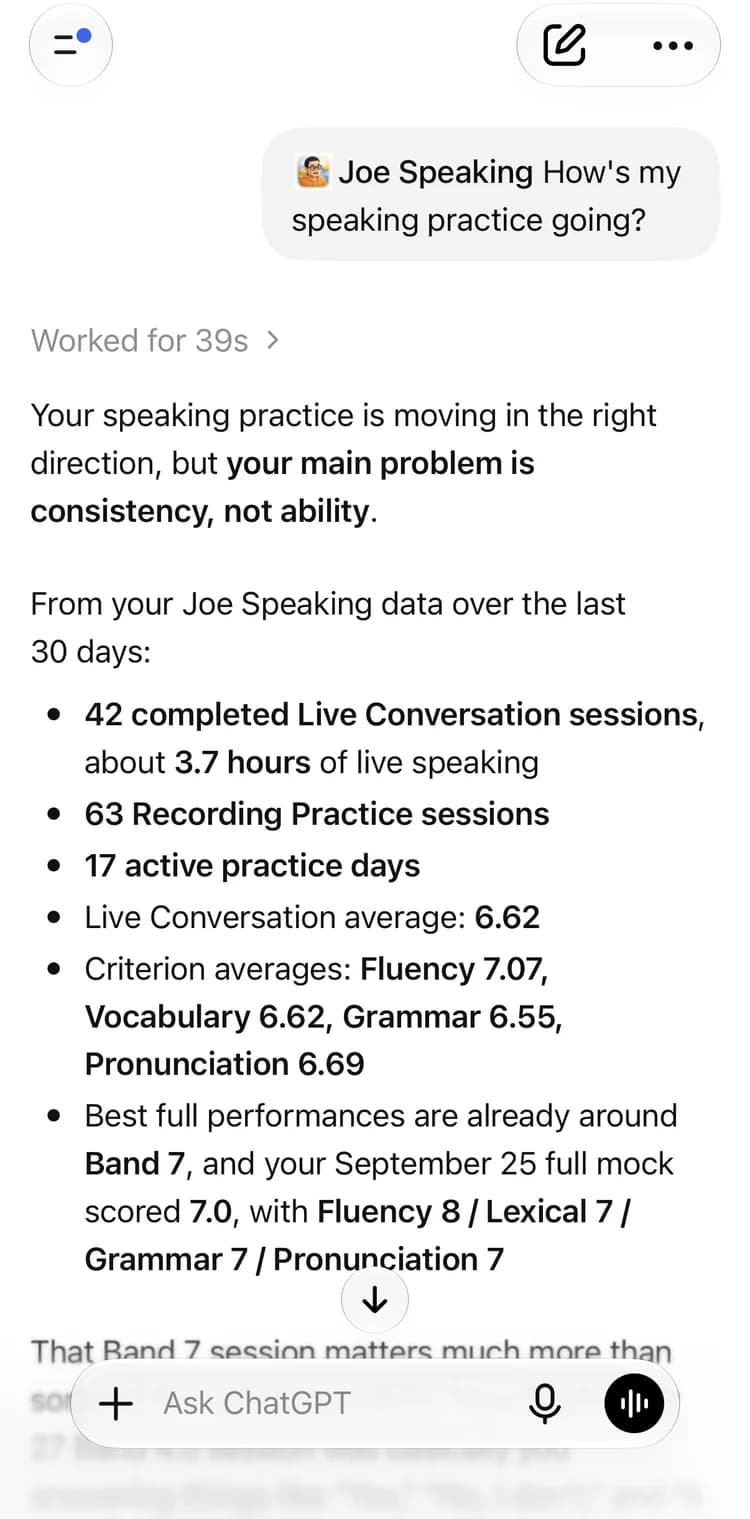
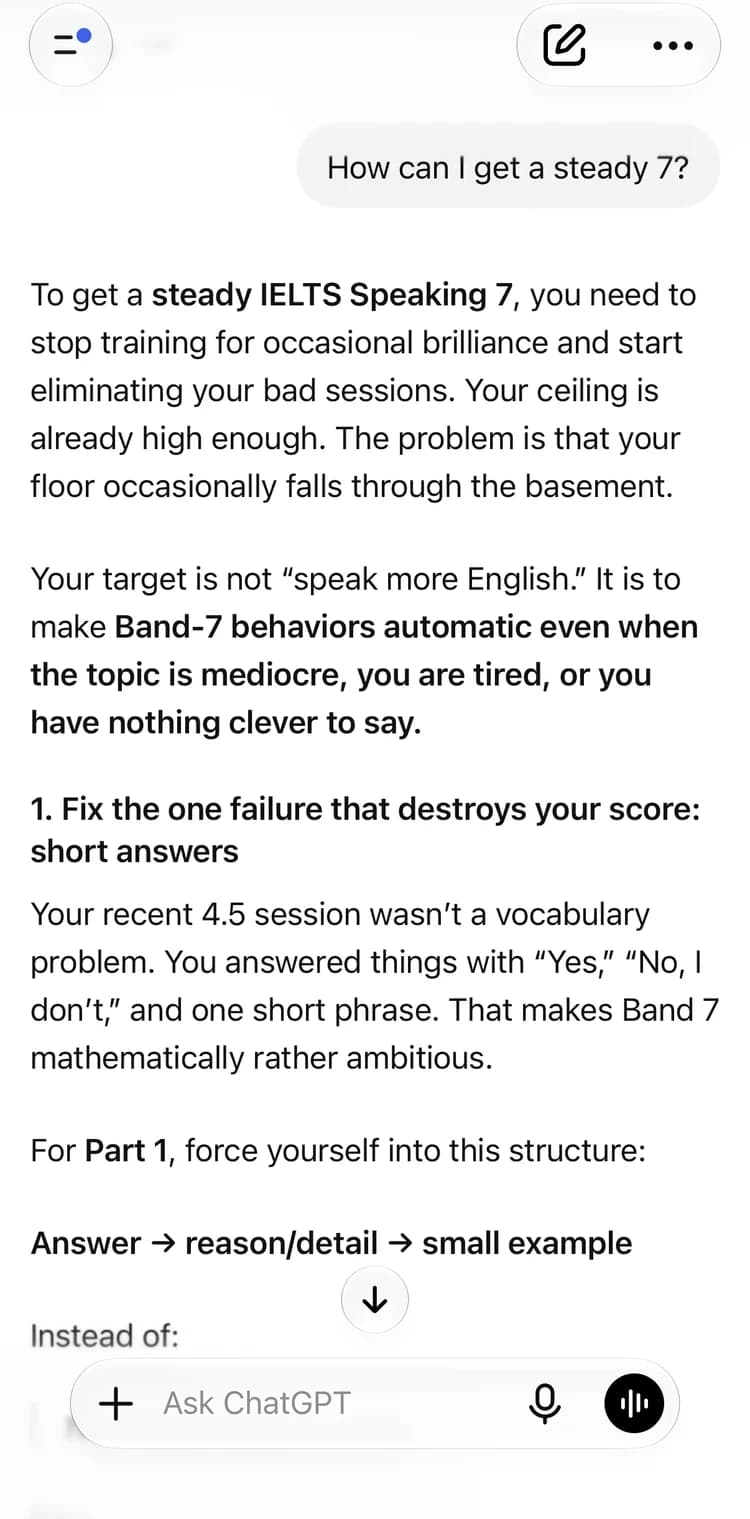
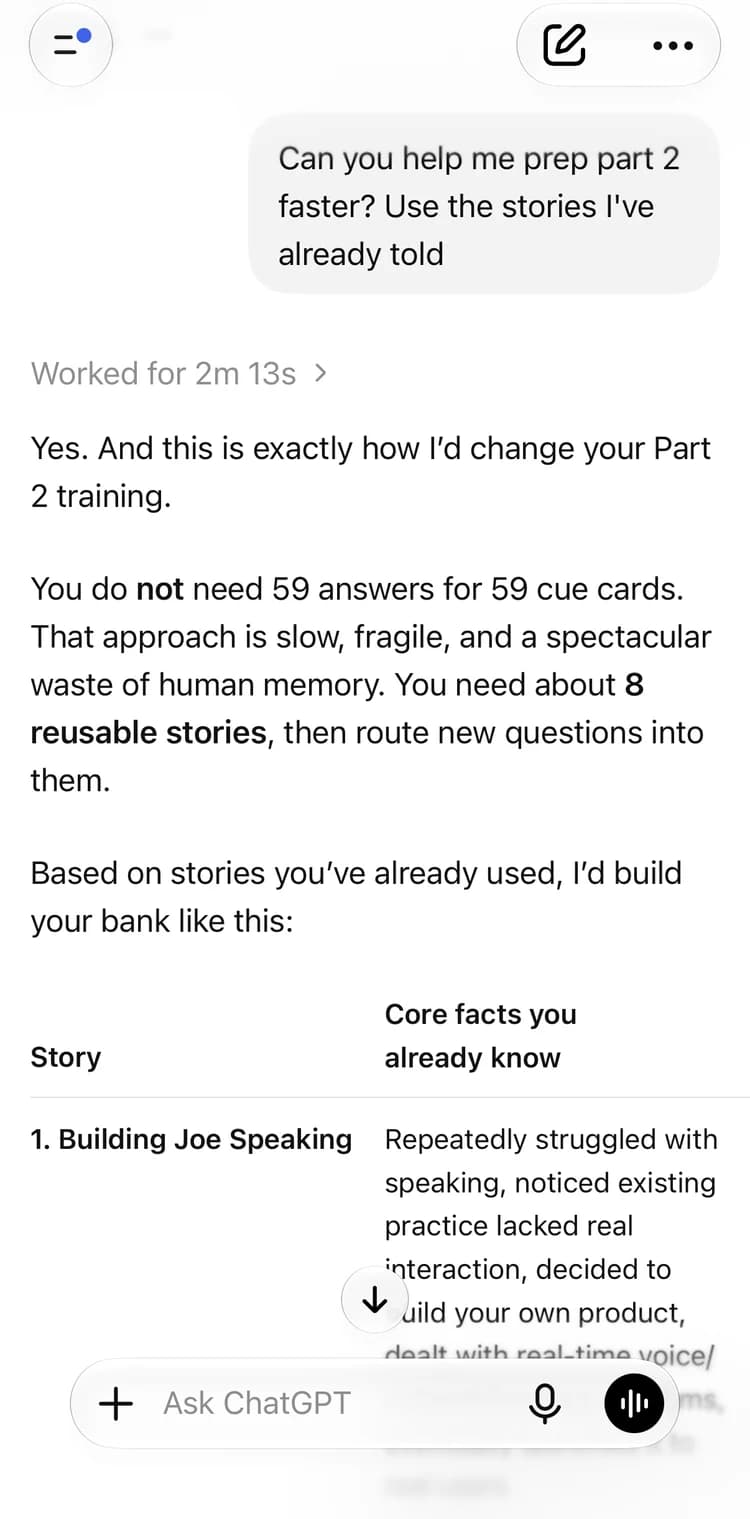
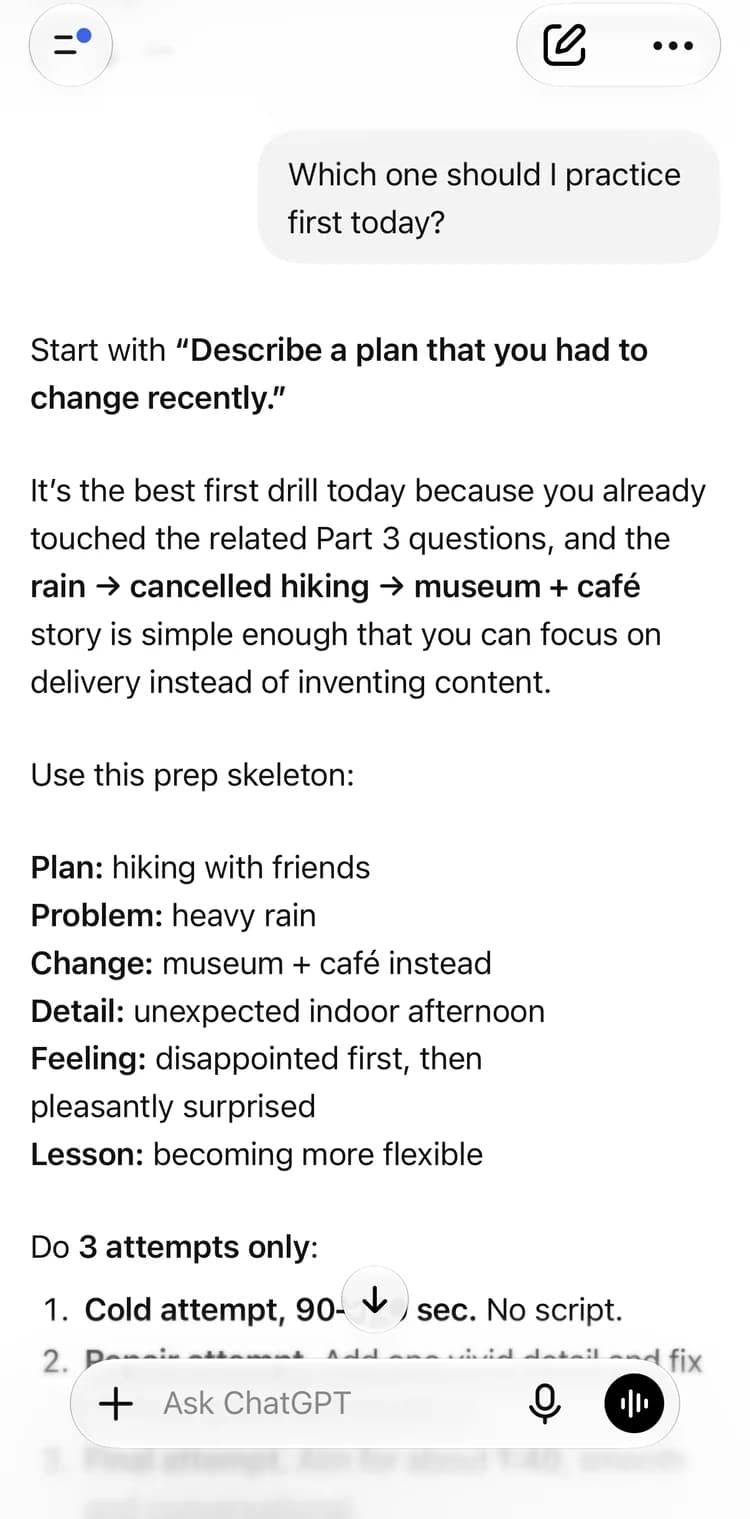
One conversation in ChatGPT on an iPhone, answered from saved practice through the Joe Speaking plugin.
Pick a question
Unedited screenshots from Joe’s own practice account. With your account, ChatGPT answers from your own practice.

Read-only, and only yours.
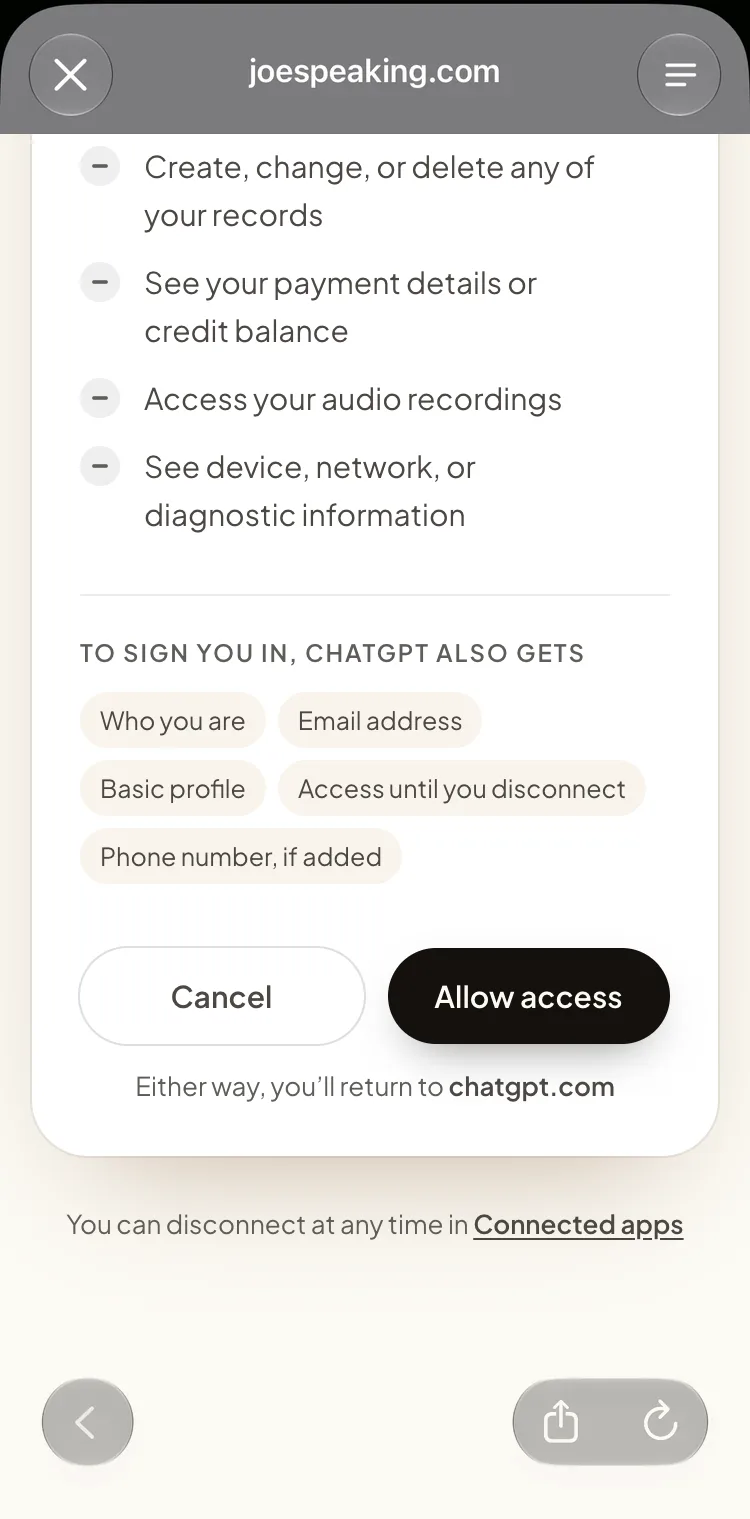
This is the screen you approve before any assistant can read your practice.
Only your account
Every answer comes from the Joe Speaking account you approve, and only from practice that has synced to it.
No audio or payments
It reads saved practice details. It never receives your recordings, payment details, or credit balance.
Disconnect anytime
Remove access from Connected Apps in your settings whenever you choose.
ChatGPT wants to connect
Read-onlyLet ChatGPT read your practice?
Signed in as
you@example.com
It will be able to read
- Search the public IELTS and CELPIP question banks
- Read your cloud-synced Live Conversation history
- Read your cloud-synced Recording Practice history, including transcripts
- Read your Collection items
- Read your scores, learner feedback, and practice progress
It will never be able to
- Spend your credits or start a paid practice session
- Create, change, or delete any of your records
- See your payment details or credit balance
- Access your audio recordings
- See device, network, or diagnostic information
Add Joe Speaking to ChatGPT.
Captured in the ChatGPT iPhone app. The same steps work on the web and in the desktop app.
Six steps
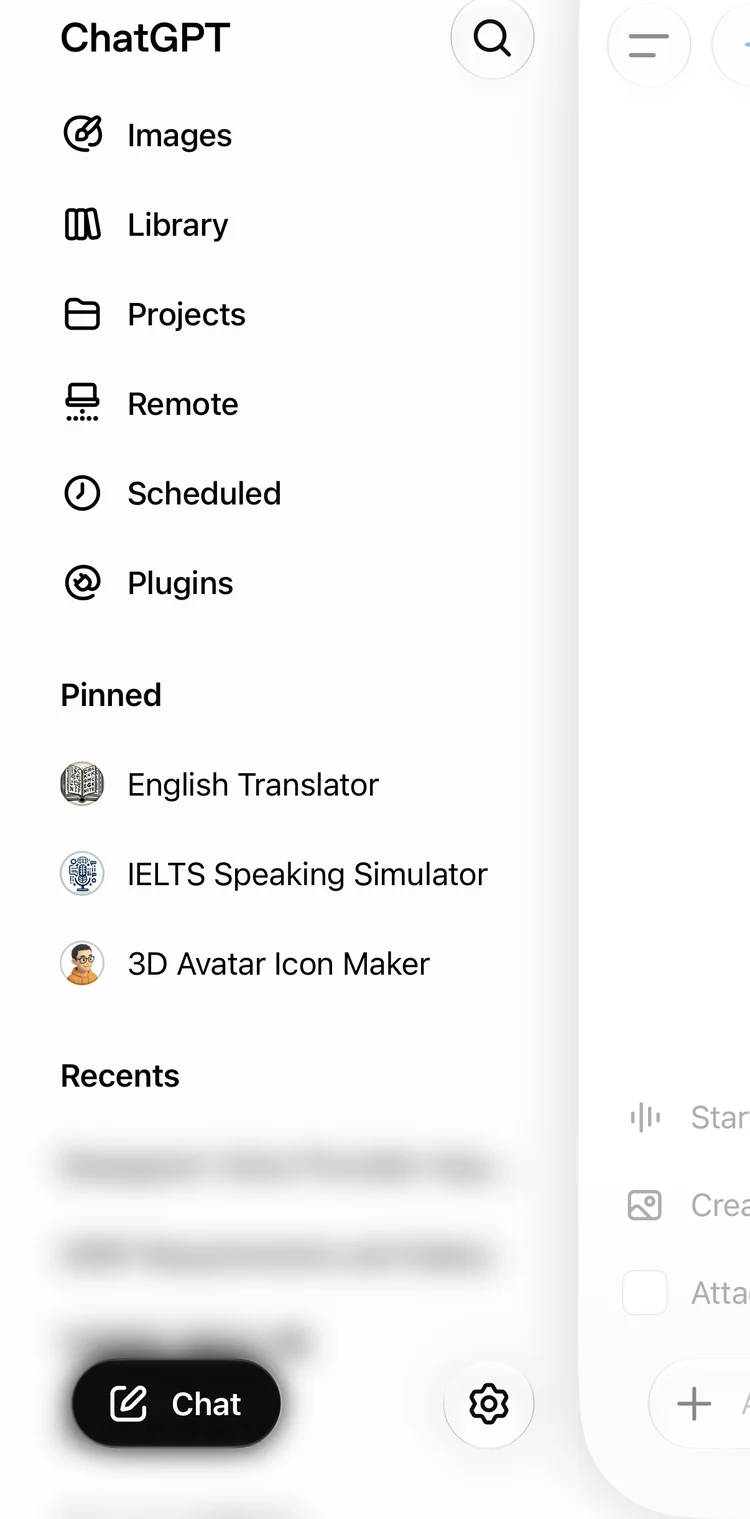
Step 1 of 6
Open Plugins
In ChatGPT, open the sidebar and choose Plugins.
Open Plugins
In ChatGPT, open the sidebar and choose Plugins.
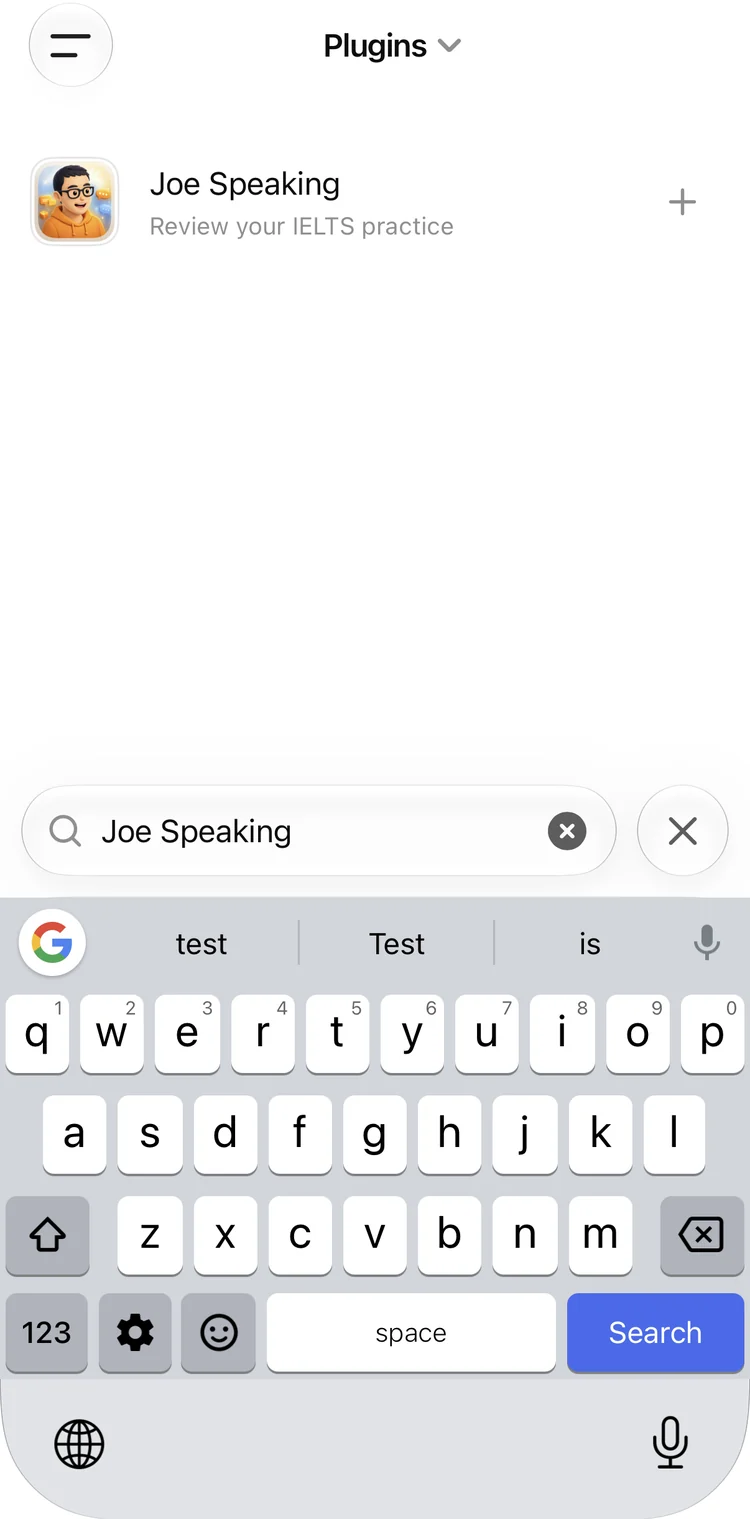
Find Joe Speaking
Search for Joe Speaking, then tap + to add it.
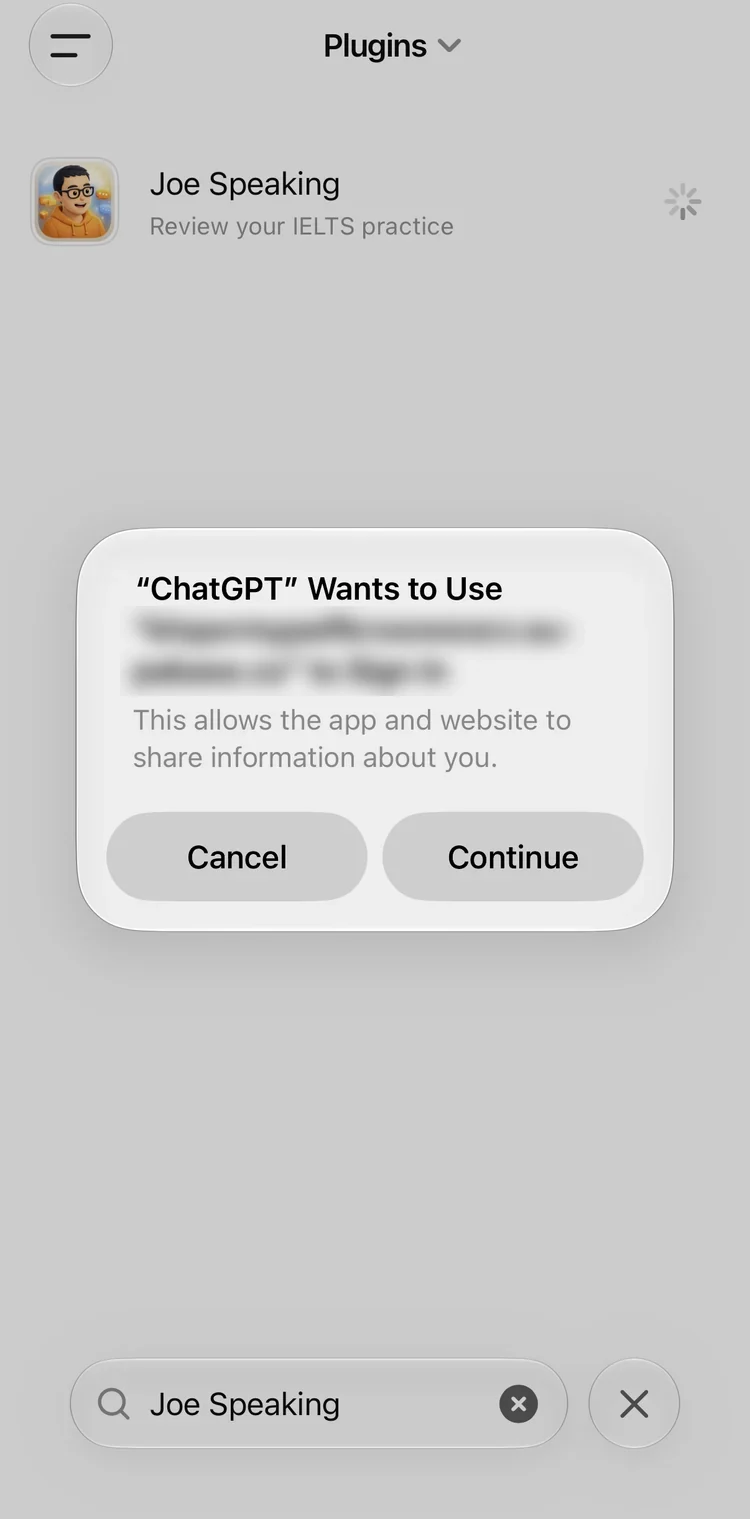
Continue to sign in
Your phone asks to open the Joe Speaking sign-in. Tap Continue.
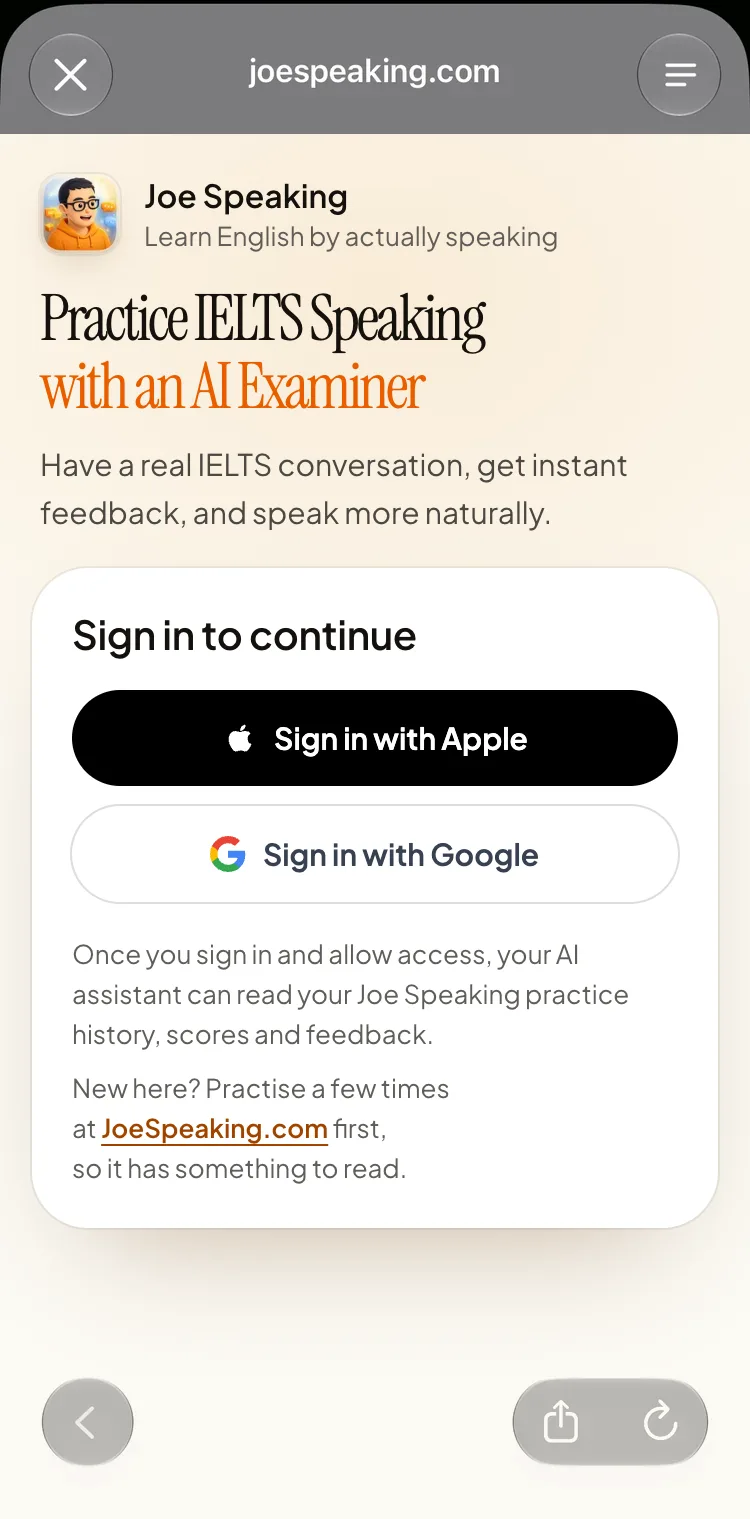
Sign in to Joe Speaking
Use the account you practise with. Signing in doesn’t approve anything yet.
Allow read-only access
Check what ChatGPT can and can’t see, then tap Allow access.
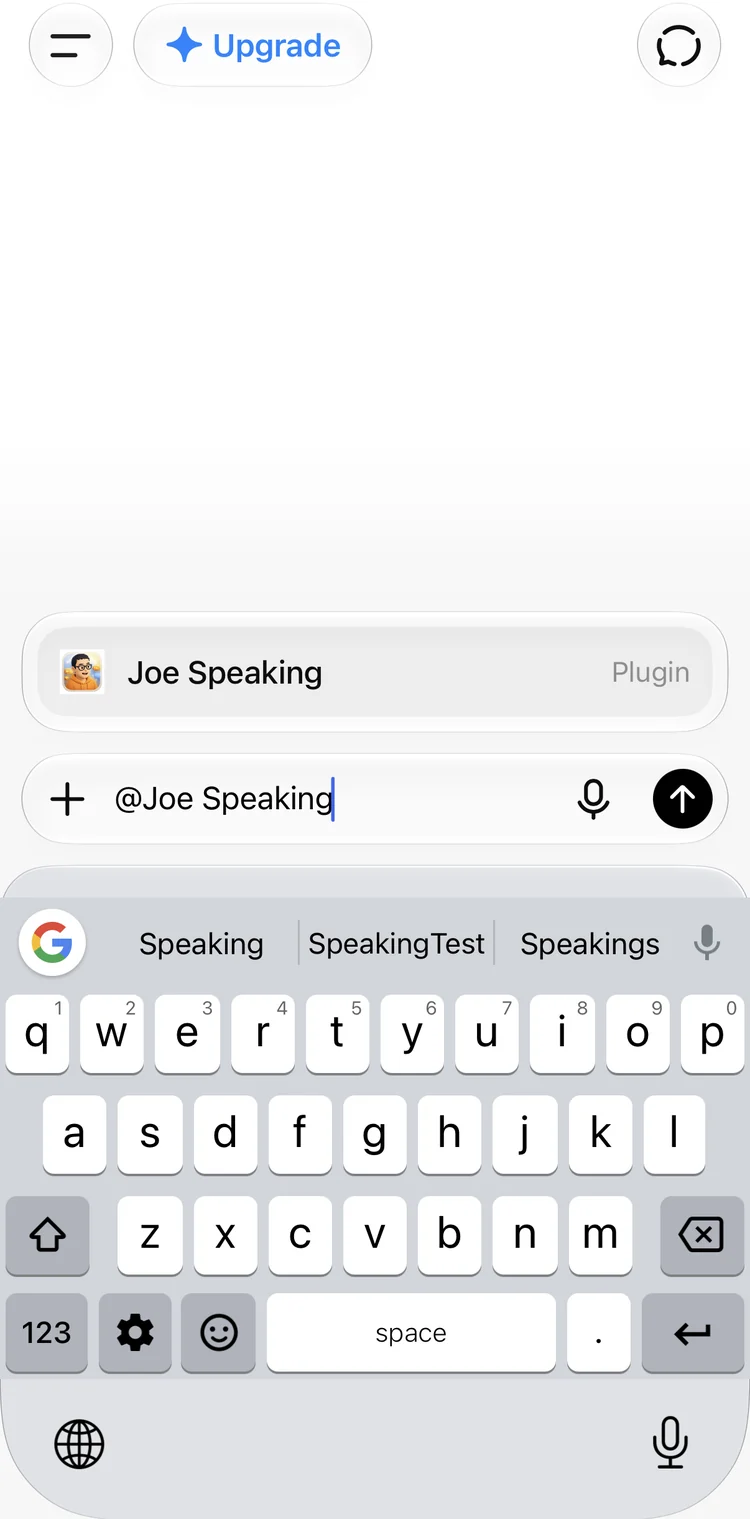
Ask with @Joe Speaking
Back in ChatGPT, start your question with @Joe Speaking.
Joe Speaking also connects to


Common questions.
Only after you add Joe Speaking and approve read-only access. Then ChatGPT can read your saved sessions, criterion scores, transcripts, feedback, and question-bank coverage, and answer from your own practice.
In ChatGPT, open Plugins, search for Joe Speaking, and tap +. Sign in to Joe Speaking and allow read-only access, then start your question with @Joe Speaking.
Yes. Ask it to link this season’s Part 2 cue cards to the stories you’ve already recorded in Joe Speaking. It groups the cards under a few reusable stories, notes the angle to change for each card, and flags the cards that shouldn’t be forced. The more Part 2 answers you’ve recorded, the more it has to work with.
No. Access is read-only: it can’t change or delete your records or spend credits, and it never receives your recordings, payment details, or credit balance.
Open Connected Apps in your Joe Speaking settings and remove ChatGPT. You can do this anytime.
Yes. On the web or desktop, open Joe Speaking in the Claude directory and select Connect to Claude. Sign in to Joe Speaking and allow read-only access. Once connected, it also works in the Claude mobile app and Claude Code.